> ## Documentation Index
> Fetch the complete documentation index at: https://developers.dock.us/llms.txt
> Use this file to discover all available pages before exploring further.
# API Keys
> Learn how to get your Dock API key.
API keys on Dock allow you to access your data programmatically. This is useful for integrating Dock into your application or with other tools and services.
Each API key is tied to your company – meaning you can use it to access your company's resources without having to worry about "leaking" access to other companies.
## Secret keys
API keys on Dock – **Secret keys**.
| Type | Format (Example) | When to use |
| :--------- | :------------------------------------ | :------------------------------------------------------------------------------------------------------------------------------------------------------------------------------------------------------------------------------------------------------------------------------------------------------------ |
| **Secret** | `69b005b71e69-4f38-9ld9-9789592a3dfe` | Use this key to authenticate requests on your server. By default, you can use this key to perform any API request without restriction, so it must be stored securely in your app's server-side code (such as in an environment variable or credential management system). Don’t expose this key on a website. |
## Create a secret API key
You must be an account `admin` to create an API key.
You can create an API key by following these steps:
Go to **Settings** > **API** in your Dock account.
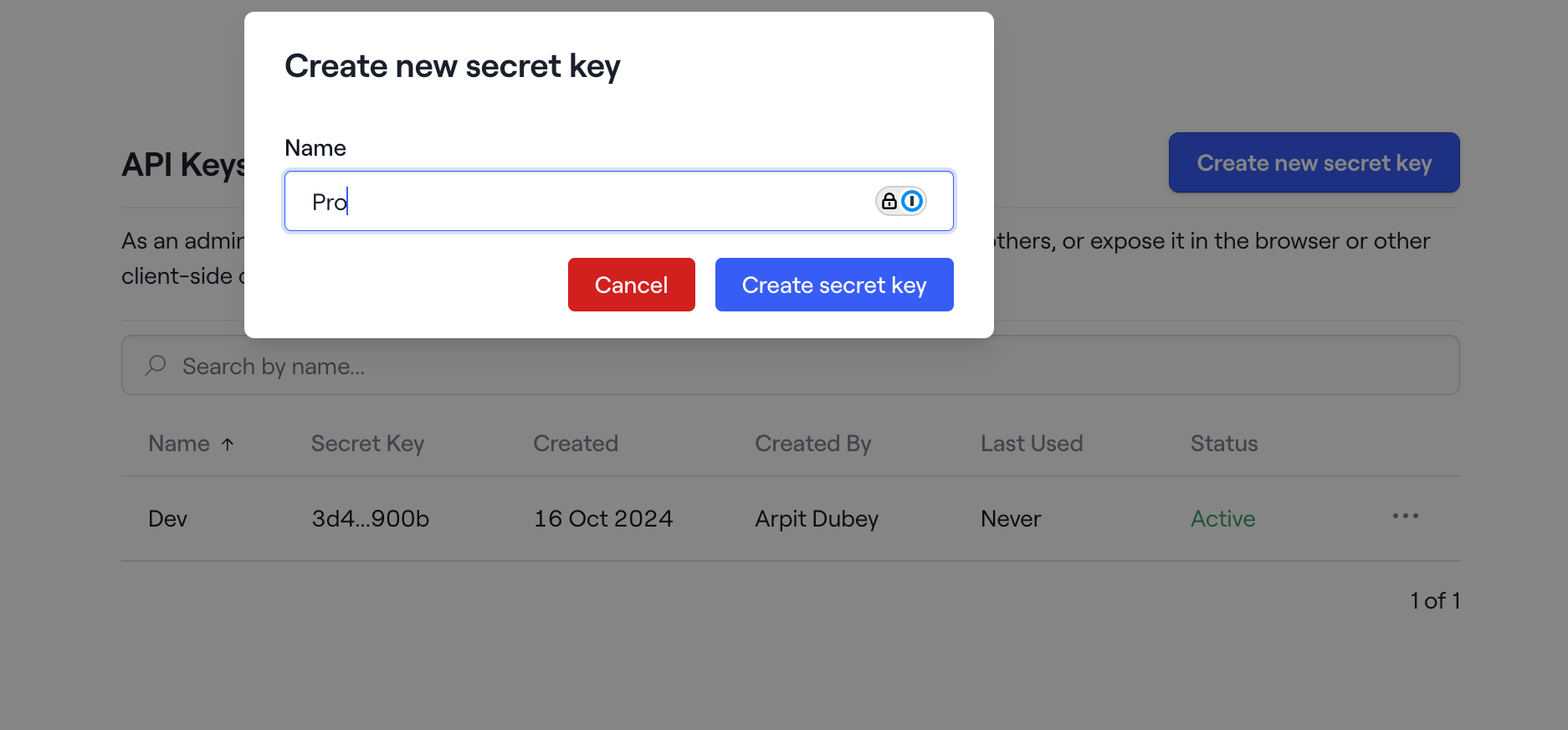
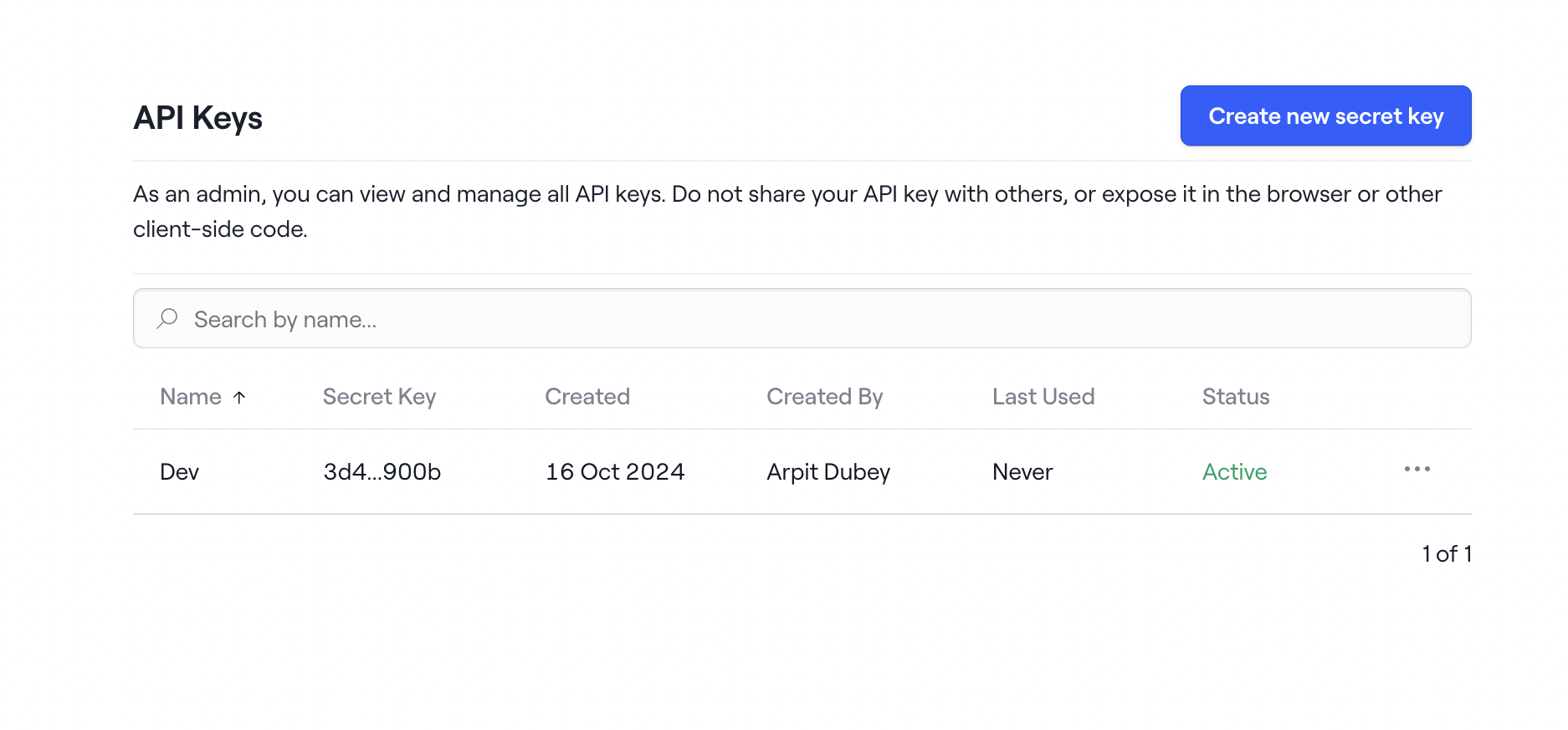 Click on the "Create new secret key" button and give the API key a name.
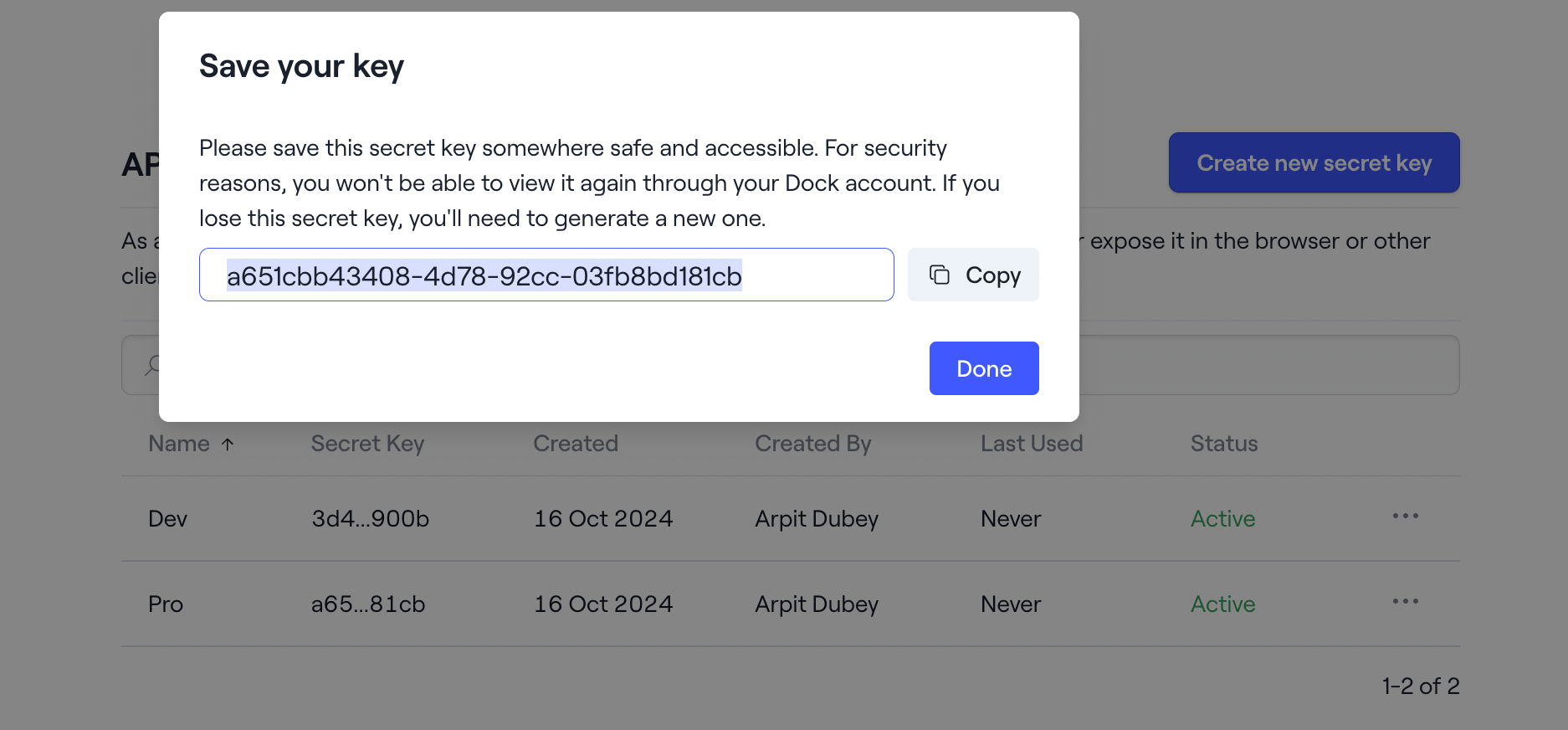
 Click on the "Copy" button and store it in a safe place since you won't be able to see it again.
 Now that you have your API key, you can use it to access your workspace's resources programmatically via SDKs or within any API request as a bearer token.
```
Authorization: Bearer xxxxxxxx
```
Now that you have your API key, you can use it to access your workspace's resources programmatically via SDKs or within any API request as a bearer token.
```
Authorization: Bearer xxxxxxxx
```