> ## Documentation Index
> Fetch the complete documentation index at: https://developers.dock.us/llms.txt
> Use this file to discover all available pages before exploring further.
# Introduction
> Use webhooks to get real-time notifications on events happening across your Dock workspace.
Webhooks allows you to listen to real-time events happening across your Dock workspace. With webhooks, you can build custom integrations with Dock, such as:
* Sending click events in real-time for further processing
* Triggering a Slack notification when someone clicks on your pitch deck link
* Triggering downstream automations when a workspace is created
* Syncing learner lifecycle updates from `course.completed` and `course.reviewed`
* Tracking library asset views, shares, and downloads
`presentation.viewed` and `presentation.downloaded` are emitted for
presentation share-link activity only. Asset link activity is available
through `asset.viewed`, `asset.shared`, and `asset.downloaded`.
In this guide, we'll show you how to configure webhooks for your Dock workspace and a list of available events you can listen to.
## Creating a webhook
You must be an account `admin` to create a webhook.
To create a webhook for your Dock workspace, you'll need to follow these steps:
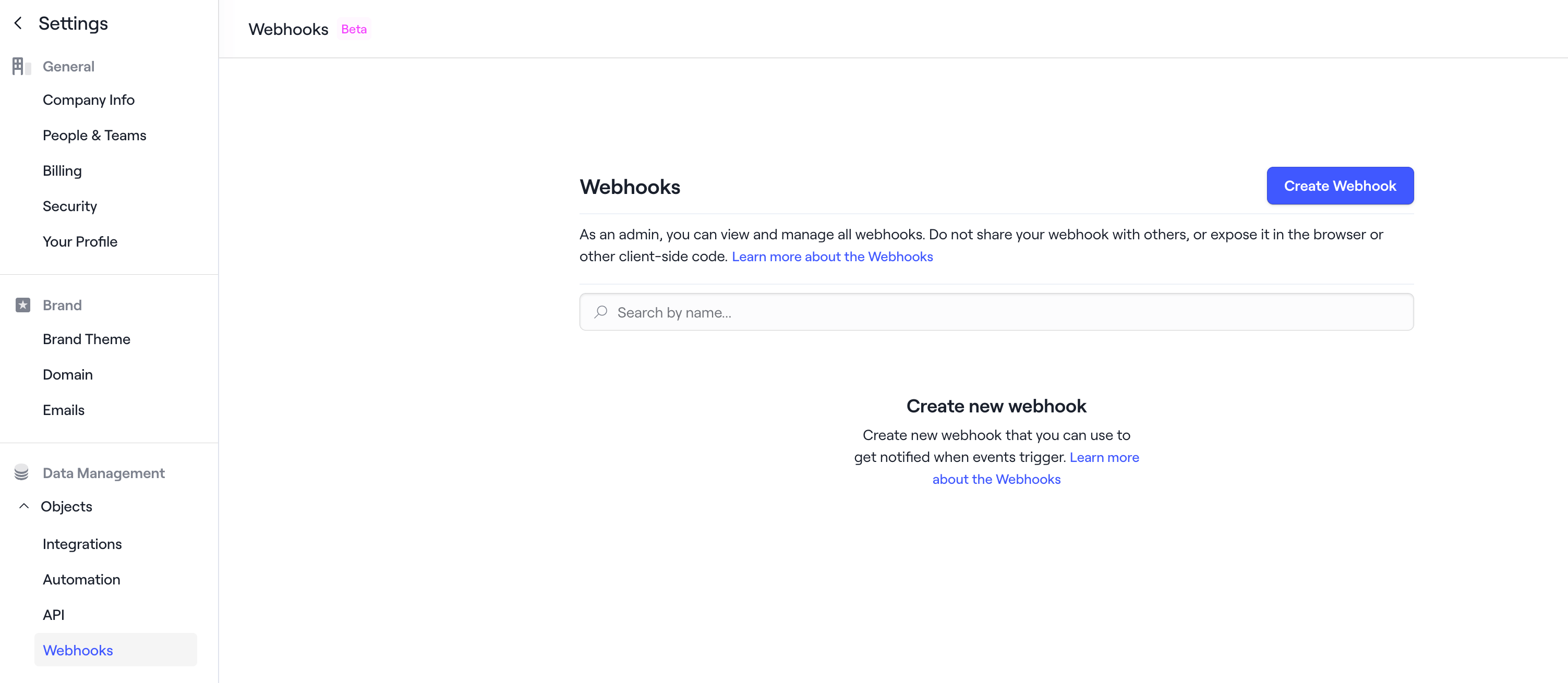
Go to **Settings** and click on **Webhooks** from the **Data Management**
section in the side navigation.
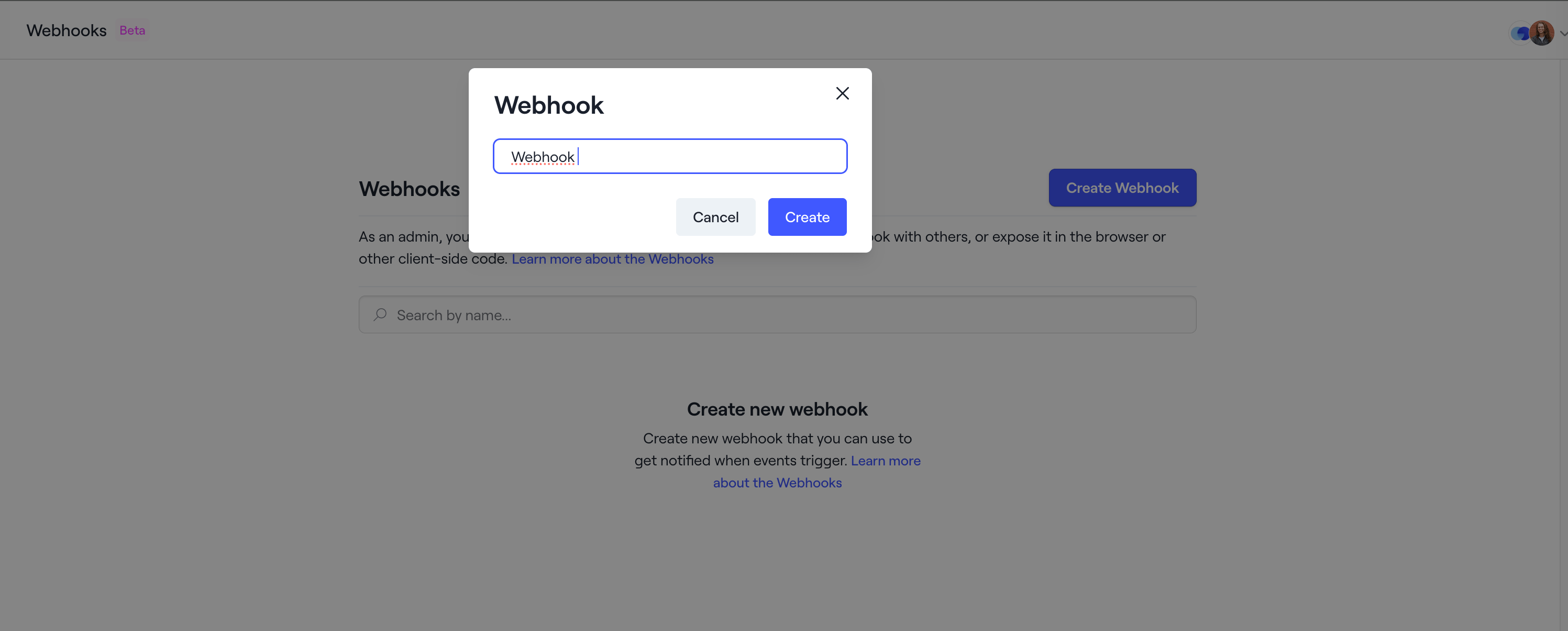
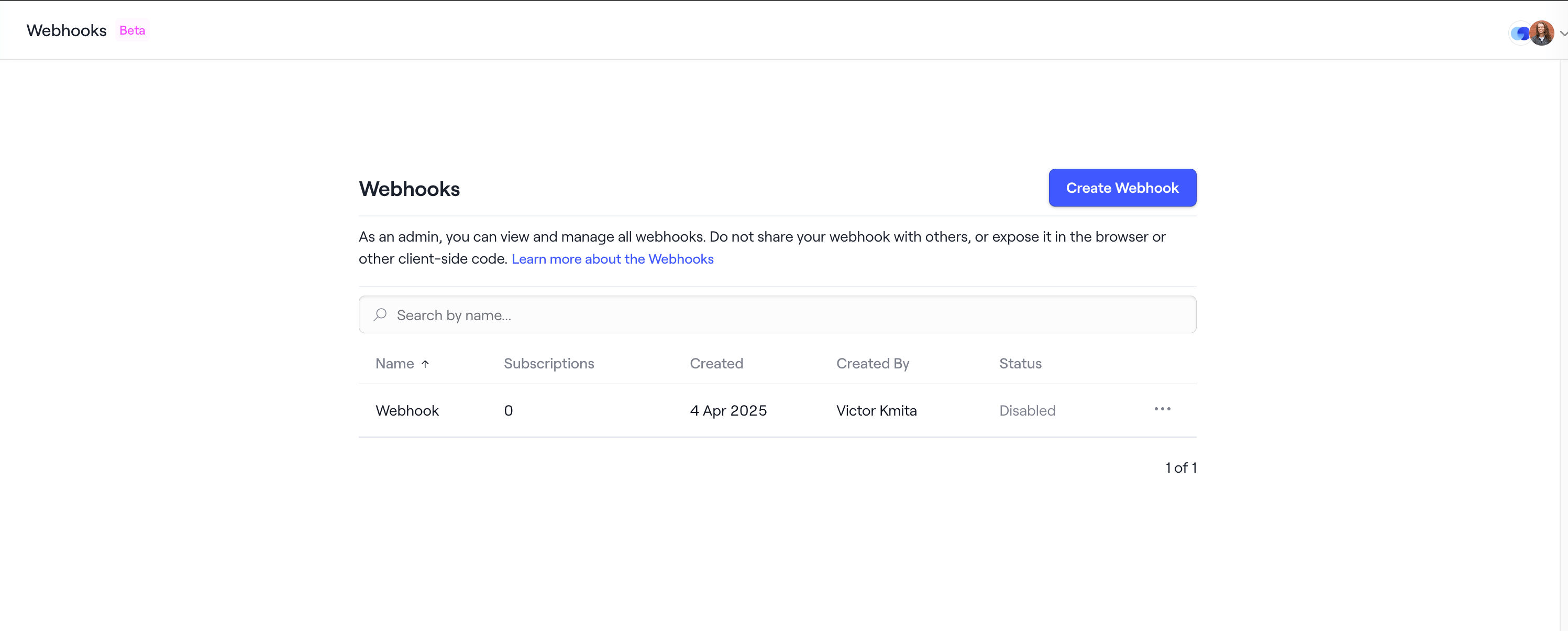
 Click on **Create Webhook** button and enter a name to create a webhook in
your application. Once created, it will appear in the list on the page.
Click on **Create Webhook** button and enter a name to create a webhook in
your application. Once created, it will appear in the list on the page.
 Enter the webhook target URL and click on **Save** to verify the webhook
target URL.
The webhook target URL must accept a POST request for verification and
event delivery.
Enter the webhook target URL and click on **Save** to verify the webhook
target URL.
The webhook target URL must accept a POST request for verification and
event delivery.
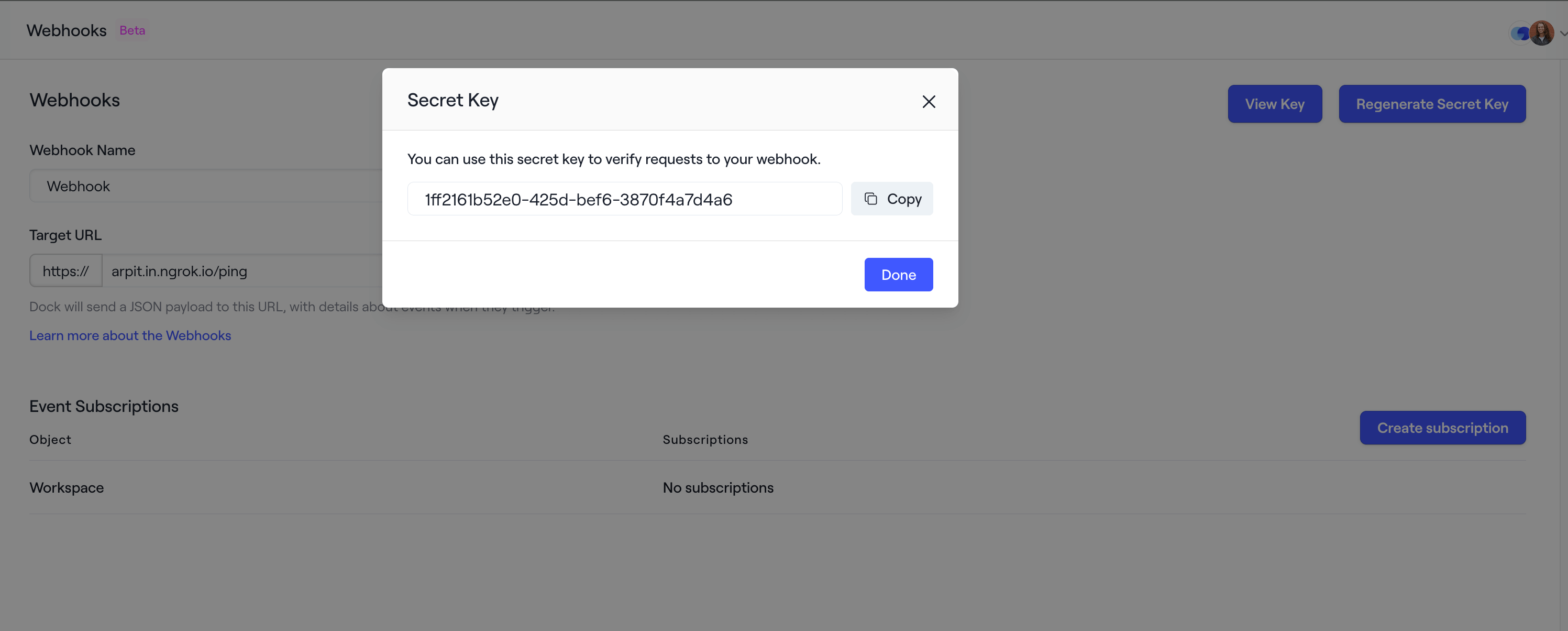
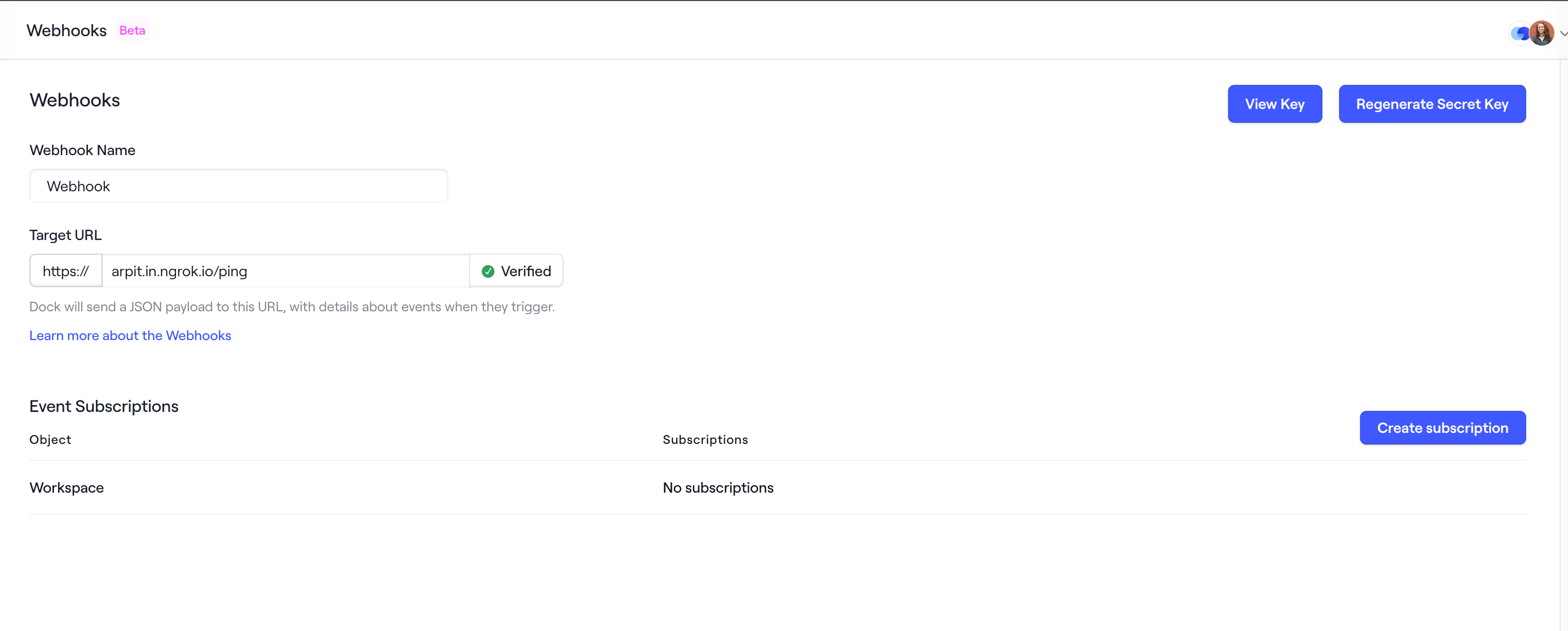 You can click on the **View Key** button to see the secret key. You can use
this secret key to verify incoming webhook event from Dock incase you have a
custom implementation to consume webhook events.
You can click on the **View Key** button to see the secret key. You can use
this secret key to verify incoming webhook event from Dock incase you have a
custom implementation to consume webhook events.